
If you're an administrator, many of your permissions and functions are only available through the web version of Ommnio, which is optimized for use on large screens. Regular users without admin permissions can also access the web version of Ommnio.
Browser Compatibility
Ommnio works best with the following web browsers on a screen width of at least 1200 pixels:
How to Log in to Ommnio from Your Computer
-
Open your browser and go to 👉 https://web.ommnio.com/auth/login
Or visit www.ommnio.com and click on “Login”. -
You will be redirected to the login page where you’ll enter your phone number to access your account.
- If you have the Ommnio app installed on your phone, you'll be prompted to approve the sign-in from your device. Tap “Yes, it’s me” to log in to the web version. If you don’t have the app installed, you can always receive a One-Time Password (OTP) via SMS to access the website.
Session Duration and Security
By default, the Ommnio session will automatically close after 15 minutes of inactivity.
This is a security measure to protect your account — especially if you're on a shared or public computer.
How to Keep the Session Open
If you are using a personal or trusted device, you can keep your session open by checking the “Keep session open” box during login:
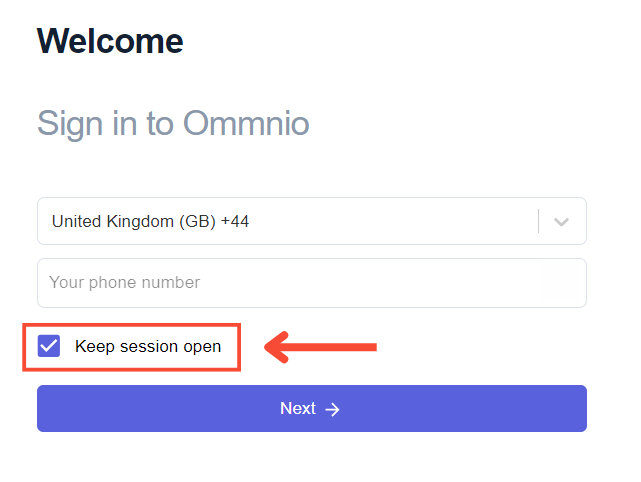
This feature is especially useful for administrators who need continuous access throughout the day.