
If you're new to acknowledge messages, check this article first to understand what they are and how users receive them: 👉 What Is an Acknowledge Message
What you need to know before sending an acknowledge message
-
Everyone in the group where the message is published will receive it. For example, if it's sent in the "Health & Safety" group, all members of that group will receive the message.
-
The message becomes part of the group’s document library, available to members of that group at any time.
-
Each message includes a title and a PDF document.
You must have a PDF document ready with the communication content before creating the message. -
These messages are read mostly on mobile devices. Keep the content brief and ensure the font is clear and readable. Ommnio will show you a preview screen before publishing so you can make adjustments.
Step by step to create an acknowledge message
-
Have your PDF ready. If you’re not sure why it needs to be a PDF, read 👉 How should an acknowledge message be
-
Select the group where you want to post the message. All members will receive it. You can also send it to an individual in a one-to-one chat.
-
Click the "Acknowledge Message" button at the bottom of the text input box.
-
A window will open asking you to upload the PDF file. You can drag and drop it or browse your computer.
-
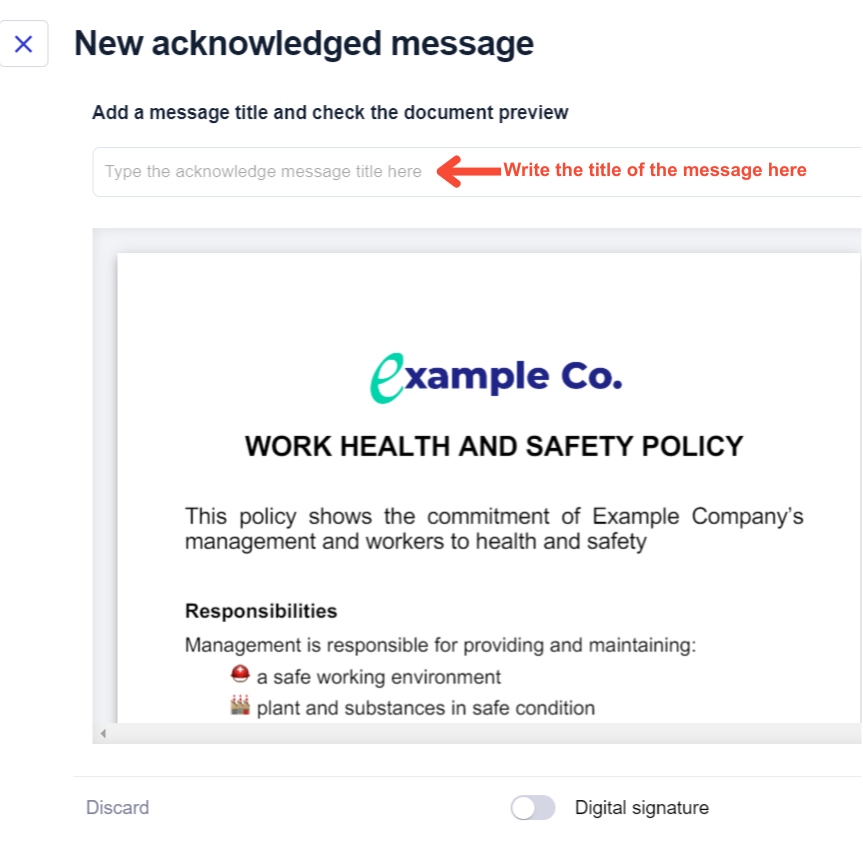
You’ll see a mobile preview of the PDF to ensure it’s readable. Adjust if needed.
-
In this same window, add a title for the message. This is what users will see when they receive it. Keep it short.
-
Click "Publish" to send immediately, "Save Draft" to keep it for later, or "Discard" to delete it.