
Forms are published inside a chat group. Only Chat Group Administrators can create and publish them. Any group member can respond, as long as they belong to the group where the form was posted.
This article walks you through creating a form from scratch. For an overview of what forms are and the available options, see Forms: What Are Forms in Ommnio?
Before you start
- You need Chat Group Administrator permissions for the group where you want to publish the form.
- Forms are created and published from the chat view, not from a separate settings page.
- All questions in a form require an answer. If a question might not apply to all respondents, add an option like "N/A — Does not apply".
Steps to create a form
1. Open the target group and start a new form
Go to the chat group where you want to publish the form. At the bottom of the conversation, click Send form.
2. Add your first question
Click Add first question. You'll see the available question types:
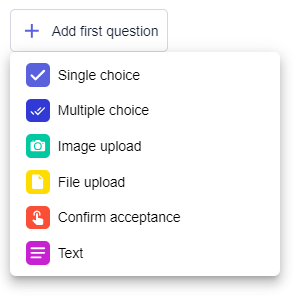
Select a type to begin. The form creation page will open, where you can set a title for the form and start adding content.
3. Fill in the question and answer options
For each question, enter the question text and the corresponding answer options (if applicable, depending on the question type).
4. Add more questions
Click to add as many questions as you need. You can combine different question types within the same form.
5. Configure visibility and anonymity
Before publishing, scroll to the bottom of the form creation page. Here you'll find the settings for:
- Results visibility — Public (all group members can see responses) or Private (administrators only).
- Response anonymity — Identified (default, responses linked to names) or Anonymous.
6. Publish
Click Create form at the bottom right. The form will be posted as a message in the group, and all members will see it and get a push notification.
Tips
- Preview your form before publishing. Once a form is posted, group members receive it immediately. Double-check question wording, answer options, and your visibility/anonymity settings before clicking Create form.
- Keep forms short for high response rates. Deskless workers are on their phones between tasks. Five focused questions will get better participation than twenty.
- Reuse rather than recreate. If you need to send the same form regularly (weekly check-ins, monthly surveys), create it once and forward it. See Forms: How to Reuse a Form by Forwarding It.